Activity log
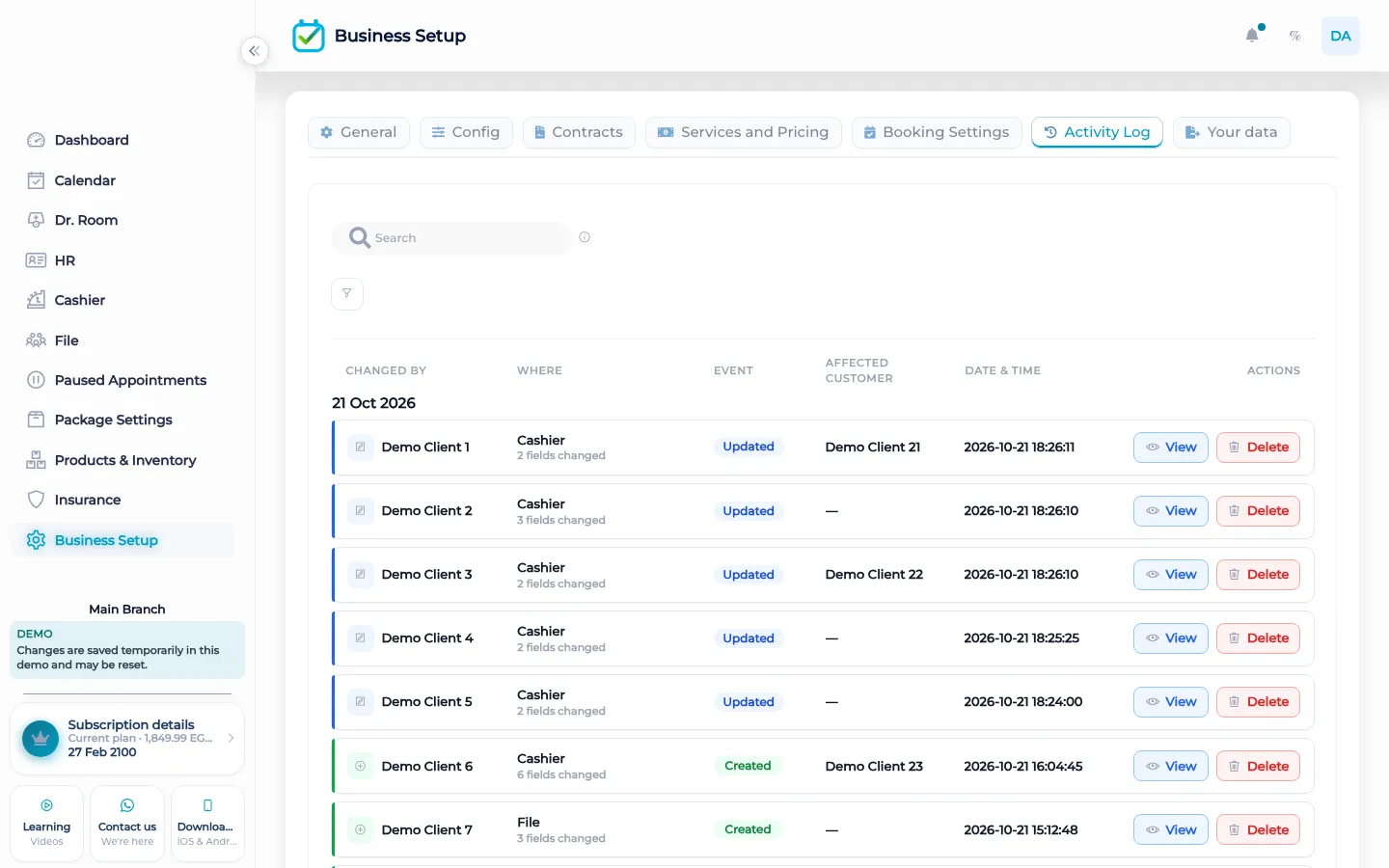
The activity log is the screen where a manager sees who changed a record in BOC, when it happened, and what the value was before and after.
What the activity log does
BOC writes an activity entry when a signed-in user changes something the product records. The entry keeps the user who caused it, the subject of the change, and the properties stored with that event. You open it from business settings, on the activity log tab. It is a search over work the team already did inside the workspace.
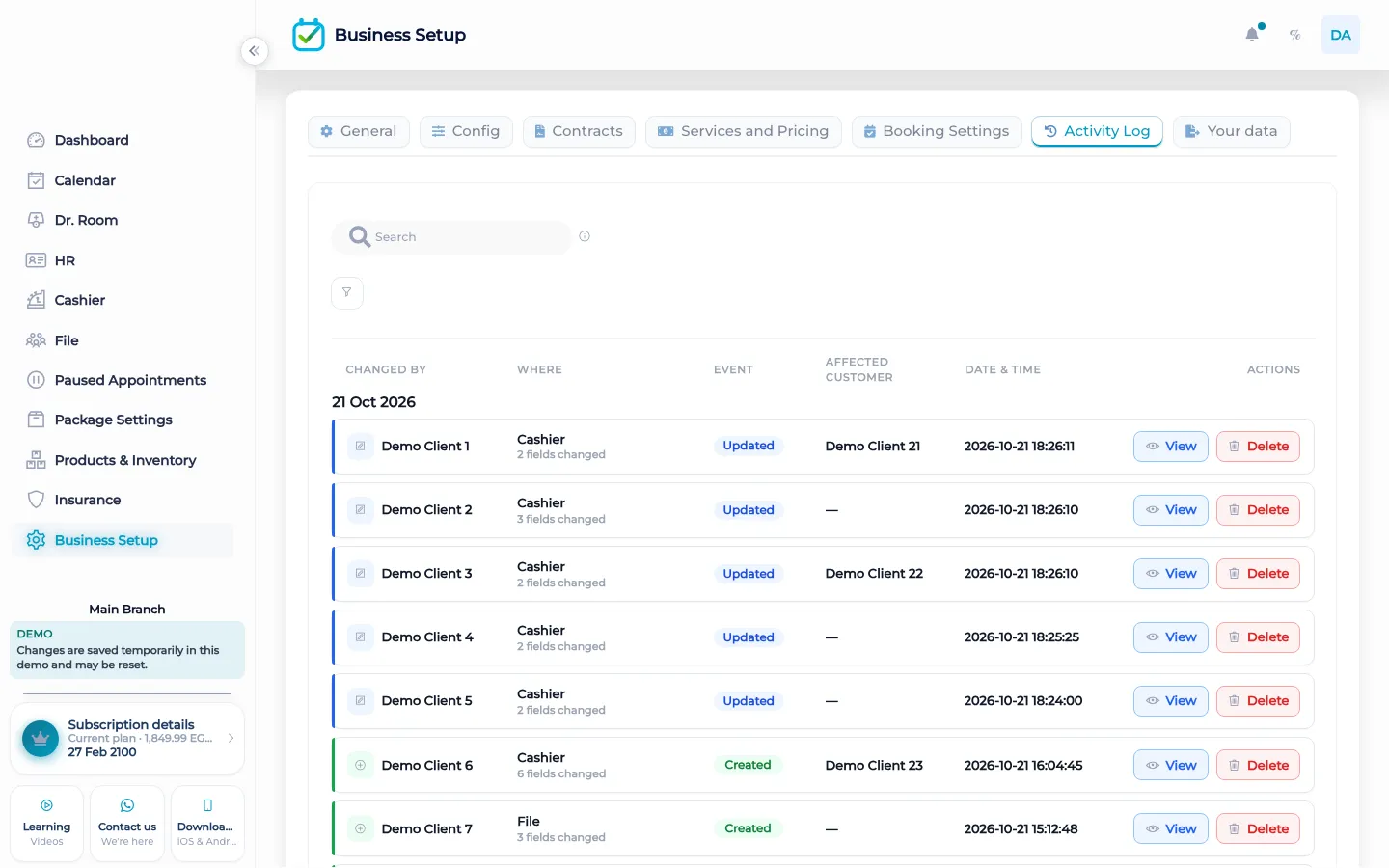
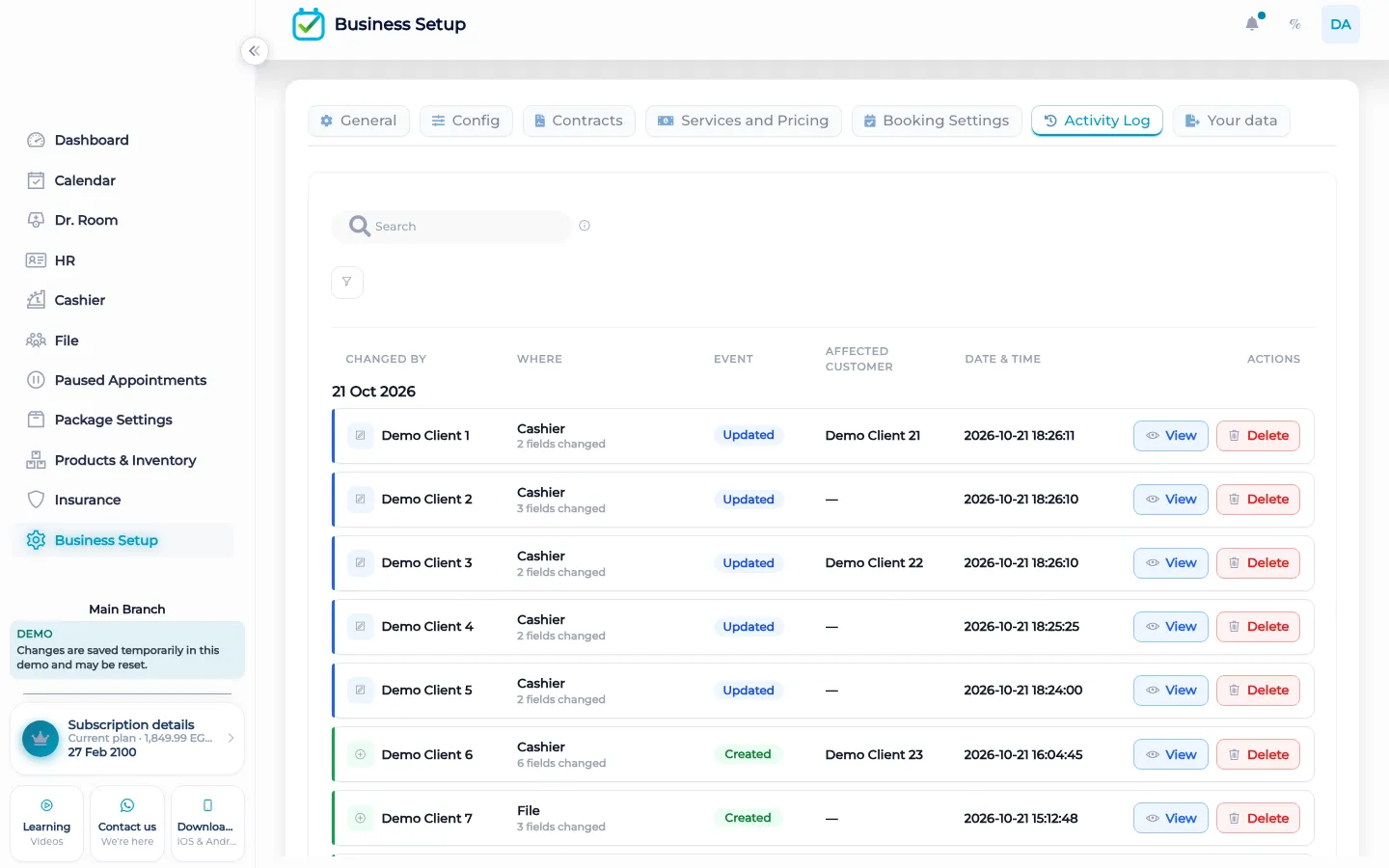
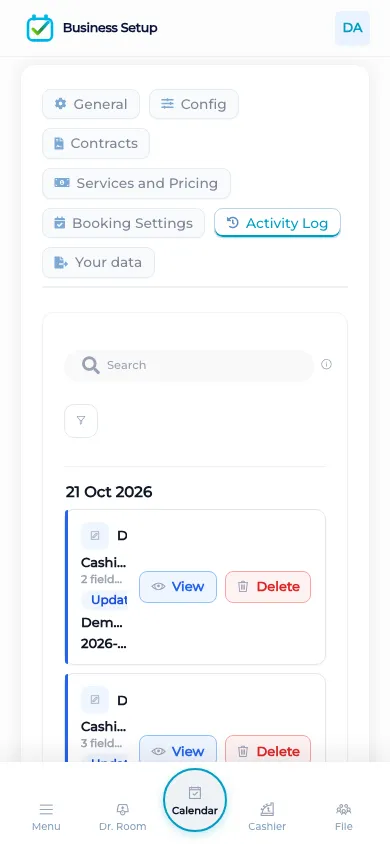
On the screen you search and filter by event type, by category, by user, and by a date range. Open a row and read the value before and the value after. That is the practical difference from a note in a book at the desk: the line is tied to the record and to the person who was signed in. The short tutorial for this screen walks through that same search and the detail of one change.
What makes it different
A permission named activity delete exists, so this log is not an immutable vault. A person who is allowed to delete activity can remove an entry. Tell the owner that plainly. The log is useful because it is searchable and because it shows the old value and the new value. It is not a promise that nobody can ever erase a line. If you need a copy of the business data, use the export in settings. The activity screen is for reading the trail inside the workspace.
The log does not send WhatsApp, it does not let a customer book themselves, and it does not replace the cashier or the calendar. Staff did the work. The row describes that work. When the row names a visit, you still open the visit to finish anything left. When the row names a payment, the money still lives on the cashier. The log tells you the change happened and who was signed in when it did.
How it works in BOC
- Open the log. Go to business settings and open the activity log tab. You are looking at events the workspace already stored, not at a separate product.
- Narrow the day. Filter by date range, and add a user, a category, or an event type when you already know what you are looking for.
- Read before and after. Open the row. Read who caused the change, the subject, and the value before beside the value after.
- Open the record. If the work is not finished, leave the log and open the visit, the file, or the cashier. The log points at the record. It does not complete the visit for you.
- Keep a copy elsewhere. When you need the business data outside the screen, use data export. Do not treat a deletable activity row as your only archive.
Who it is for
Clinics A clinic uses the log when a receptionist moves a visit or a payment looks different from the conversation at the desk. The owner filters that day and reads who changed the row.
Dental clinics A dental clinic uses it when a chart note, a visit time, or a payment was edited and the team disagrees about who did it. The row shows the signed-in user and the before and after.
Dermatology and laser A laser clinic uses it after a package session or a visit price is changed. The log shows the edit. It does not itself explain a clinical result.
Beauty salons A salon uses it when a colour service was moved or a retail sale was edited. Filter by the receptionist who was on the book that afternoon.
Spas A spa uses it when a long treatment was shortened on the calendar or a package payment was adjusted. The before and after is the conversation you no longer have to reconstruct from memory.
Barbershops A barbershop uses it when a chair’s afternoon was rewritten and the owner wants the person who moved the bookings, not a guess.
Physiotherapy A physiotherapy room uses it when a course of sessions is edited or a visit is marked differently. The log shows the edit. The clinical note still lives on the file and in the doctor room.
Sports clubs A club uses it when a court booking or a membership payment was changed by staff. Members do not get a self-service booking page from this screen.
Concrete benefits
- See the signed-in person on the change, not a shared desk login you cannot name.
- Read the value before and the value after on the same row.
- Filter by event type, category, user, and date instead of scrolling a whole month.
- Settle a dispute about a moved visit without asking every person on shift.
- Know the log can be deleted by someone with that permission, and keep export for the archive.
Watch the tutorial
See who made a change, when it happened, and the value before and after. Search and filter by event type, category, user, and date range.
Questions
Where do I open the activity log?
Open business settings and choose the activity log tab. The list is the events BOC stored for signed-in changes in that workspace.
Can I see the old value?
Yes. Open the row and read the value before beside the value after, along with the user and the subject of the change.
Is the log impossible to delete?
No. A person with the activity delete permission can remove an entry. Do not describe the log as sealed.
Does this send a message to the client?
No. The activity log does not send WhatsApp or any other message. WhatsApp, when you use it, is a button on the customer file.
Can a customer see this log?
No. There is no customer self-booking portal and no customer view of the activity log. Staff read it inside the workspace.
How is this different from data export?
The log is a searchable trail of changes. Export downloads the business data, including a full history and customer files. Use export when you need a copy outside the screen.